Guides
How to transcribe audio and video to text in Sayw
Upload audio or video, transcribe a Reel, check the wording and copy the result. A practical guide to file formats, timestamps and free transcription limits.
Start with the recording you already have
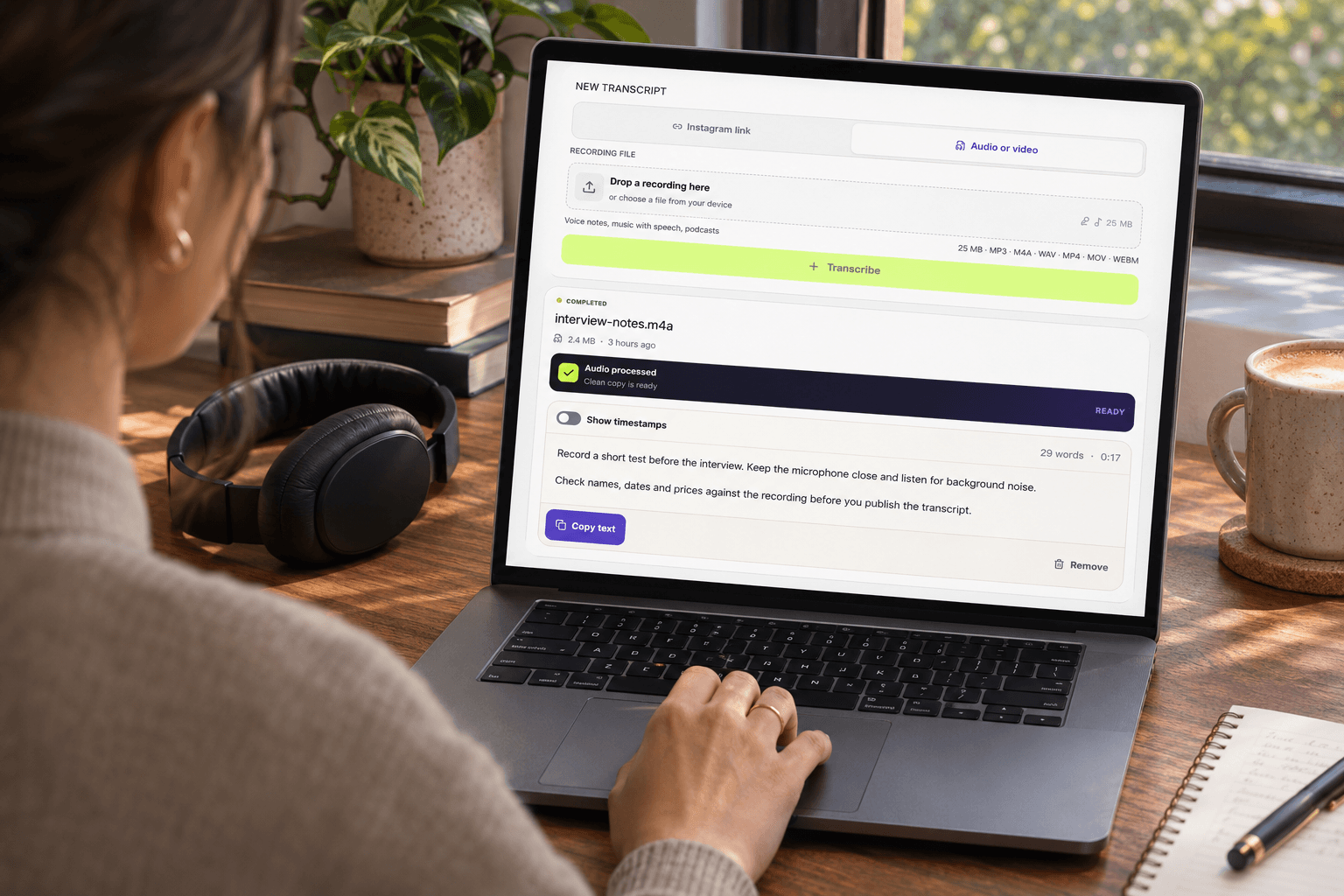
You have a voice note, an interview or a video, and need the words without typing them all out. In Sayw, open Transcripts, choose an audio/video file or an Instagram Reel link, and start the transcription. When it finishes, review the text and copy it into your document.
We recommend uploading the original file when you have it. That removes an unnecessary dependency on whether an Instagram link can be accessed. Use the link option when the recording is already a public Reel and you do not have a convenient local copy.
This workflow transcribes speech. If you want to extract text that appears on a slide or a sign in the video, you need optical character recognition or a manual copy of that frame. A silent video with written captions does not contain the spoken audio this tool needs.
| What you have | What to choose | Check first |
|---|---|---|
| Voice note, interview or podcast file | Audio or video | The file contains audible speech and fits the upload limit. |
| Video saved on your device | Audio or video | MP4, MOV and WEBM are accepted. |
| Public Instagram Reel | Instagram link | Paste one Reel URL, not a profile or collection. |
| Words visible in a silent video | An OCR tool or manual transcription | Speech recognition cannot read text from the picture. |
Upload video for transcription, or select an audio file
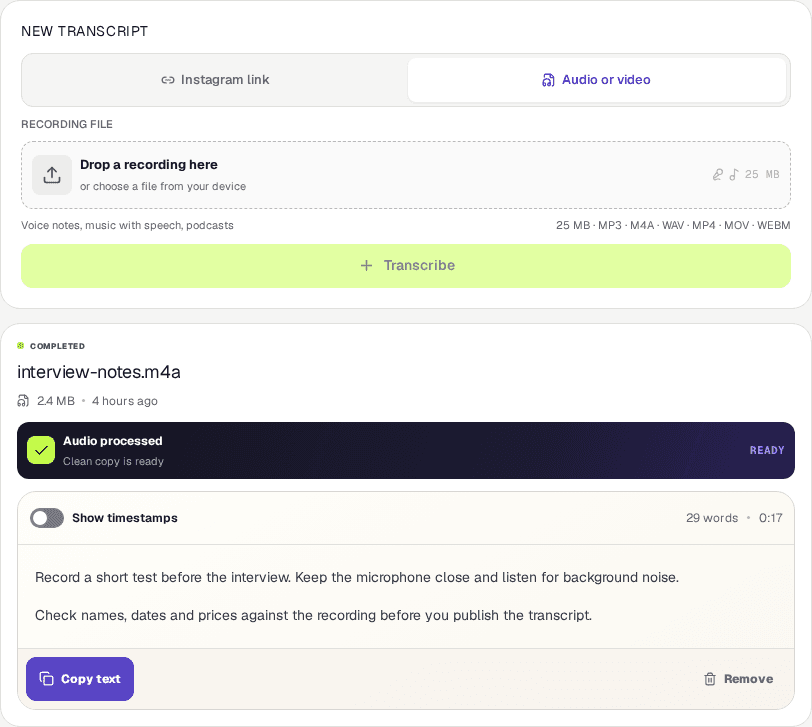
Sign in to your Sayw workspace and open Transcripts. Select Audio or video, then choose the recording from your device or drag it into the upload area. The selected filename appears before you submit it; check it against the recording you intended to use.
The file limit is 25 MB. Common supported formats include MP3, M4A, WAV, MP4, MOV and WEBM; FLAC, OGG, MPEG and MPGA are also accepted. Changing a filename extension does not convert a file. If your recorder uses another format, export a supported audio or video file from the original application.
Click Transcribe once and watch the job status. Queued and processing jobs update automatically. When the text is ready, select the result in the list. The screen below uses a short demonstration transcript, so you can see the upload controls and the finished result together.
Use an Instagram Reel link when that is your source
Choose Instagram link, paste the URL for one Reel, and select Transcribe. Public Reels work best. Before submitting, open the link yourself and confirm that it points to the intended video and that the speech is audible.
A link that works in your own logged-in Instagram session may still be unavailable to an external service. If import fails and you own the recording or have permission to use it, upload the local audio or video file instead. Repeatedly submitting the same inaccessible link is unlikely to solve an access problem.
Keep the original source with your notes. Later, when a name or quotation looks doubtful, you need a way to return to the exact recording rather than reconstruct what somebody probably said.
Check the words before making them publishable
A fluent sentence can still be wrong. Listen again around proper names, prices, dates, measurements and words such as “not.” These are small transcription errors with large consequences: “do not water daily” and “water daily” give opposite instructions.
Use Show timestamps when the result contains time markers. They help you locate a passage in the original recording. Copy text produces the reading version; Copy with timestamps retains the available markers. If a result has no timing information, adding a time by guesswork would make it harder to verify.
Copy the result into your editor for corrections. First make a faithful transcript, then create a separate edited version for an article, caption or script. Removing repetitions is useful for a reading draft, but a quotation should preserve what the speaker actually meant. Mark an unclear word for another listen instead of silently replacing it with a plausible one.
| Listen for | What to check |
|---|---|
| Names and specialist terms | Compare spelling with the speaker’s own materials. |
| Dates, prices and quantities | Replay the full sentence, including the unit. |
| Negation and qualifications | Keep “not,” “only,” “approximately” and similar words. |
| Overlapping speakers or background music | Leave an uncertainty marker until you can verify the passage. |
How to transcribe a video for free
The current Sayw Free plan includes 30 transcription minutes per month. You still need an account, and the 25 MB limit applies to an individual uploaded file. Check your available allowance before starting a long recording; a free allowance is different from unlimited transcription.
For a first test, choose a short recording with one clear speaker. Verify the words and copy behavior before spending your allowance on a longer interview. Processing time depends on the recording and the queue, so use the completion status rather than expecting a fixed turnaround.
File size and duration are different constraints. A short, high-resolution video can exceed 25 MB, while a longer compressed audio file can fit. If the picture is unnecessary, export an audio-only copy in a supported format. For a long recording, split it at natural pauses and keep the parts in order.
When the transcript is empty, incomplete or inaccurate
Play the source before retrying. A video may have music but no speech, a muted track or a microphone that recorded the room instead of the speaker. Uploading the same file again will not restore words that are absent from its audio.
For noisy recordings, try a cleaner original or a version with speech easier to hear. Avoid aggressive cleanup that cuts syllables. With multiple speakers talking at once, some passages may still require manual listening; do not assume the transcript identifies each speaker correctly.
If the upload is rejected, check both size and format. If the job fails after starting, read the error shown beside it and correct the source or access issue before another attempt. Save a verified copy of the text in your working document so your edits are separate from the original result.
Questions about turning video into words
Can I upload a video without extracting its audio first?
Yes. Sayw accepts supported video files such as MP4, MOV and WEBM within the 25 MB upload limit. An audio-only export can be helpful when the video file is too large.
Can I copy a transcript without timestamps?
Yes. Use Copy text for the reading version. Where timestamps are available, the timestamp option lets you retain them when you need to find a passage again.
Does transcribing automatically translate the recording?
This guide covers speech-to-text. If you need another language, review the transcript first and translate a separate copy, checking names and quotations against the original.
What should I do with the finished text?
Keep a corrected source transcript, then use a copy for captions, a short article or a video outline. Link the draft back to the recording so you can verify a line before publishing.