Tools
Fix names and acronyms in ElevenLabs voice-overs
Use a pronunciation dictionary in ElevenLabs Studio, check exact spelling and regenerate a full sentence before fitting the corrected narration back into your video.
Keep the spelling your audience should see
A voice-over can sound natural until it reaches a product name or an acronym. Replacing the spelling everywhere may fix the sound while leaving an awkward word in your captions. Keep a clean display script and work on the spoken version separately.
In ElevenLabs Studio, pronunciation dictionaries can supply word replacements called aliases. We recommend a small dictionary for terms that recur across a series. If you only need one line once, spelling out the phrase in your narration script may be simpler.
The script and replacements in this guide are an editorial exercise. They are inputs to try with your chosen voice, not captured audio results or a documented customer story. For a person’s or brand’s name, get an approved spoken reference before deciding what to enter.
Decide what the listener should hear
Start with a sentence that contains the difficult terms. Decide whether an acronym should be read as letters or expanded into words. A pronunciation tool cannot make that editorial choice for you. For a beginner tutorial, expanding an unfamiliar abbreviation may help; a specialist audience may already know it.
In this example, the intended narration expands both abbreviations. Keep CTA and UGC in your display copy if that is how you want them shown. Choose the caption wording deliberately when you finish the edit, because the spoken phrase will now be longer.
| Text in the script | Proposed spoken replacement | What to listen for |
|---|---|---|
| UGC | user-generated content | The full phrase is spoken clearly within the sentence. |
| CTA | call to action | The phrase fits the ending without rushing. |
Add the rules to the project you will export
Open an audio project in Studio and use the voice and model you intend to publish with. Keep the first test short enough to compare by ear. Studio is available on all plans, including Free; publication rights need a separate check before you release the audio.
In the English interface, select a term and click Open pronunciations editor. Enter an alias and preview it with Play in Output. Add the rule to a dictionary. For an existing dictionary, check that it is connected to this project; the Studio guide documents the Connect action.
Give the dictionary a name that you can recognize later, such as Tutorial terms — English. Keep a note of the voice, model and intended pronunciation beside your script. When you start another video, check its dictionary connection instead of assuming a previous project’s setup carries over.
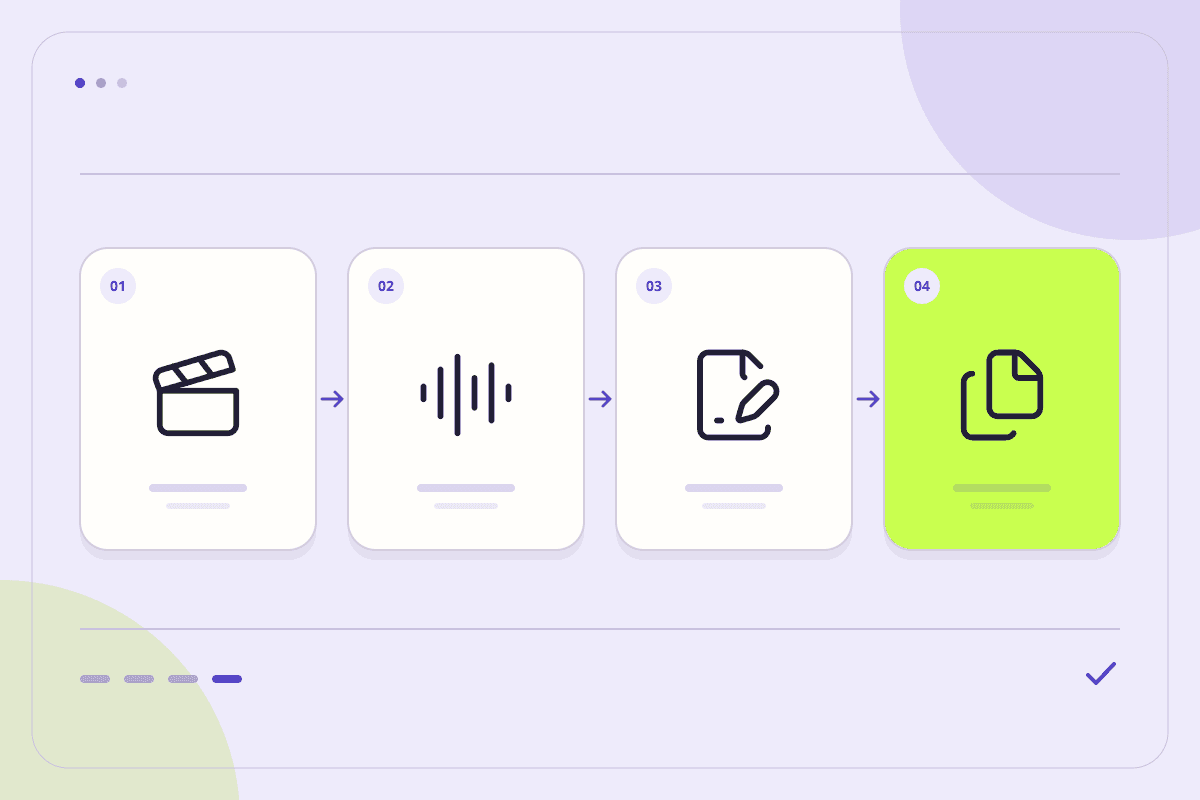
Pronunciation review for one sentence
An editorial workflow using the two proposed aliases above.
Display text
Keep UGC and CTA in the clean script.
Project dictionary
Connect the intended word replacements.
Sentence preview
Listen with the voice and model you will use.
Video check
Review timing and captions with the corrected audio.
This diagram describes a recommended review sequence; it does not reproduce the Studio interface or guarantee a particular pronunciation.
If the same word still sounds wrong
Check the exact text first. Dictionary matching is case-sensitive, so a rule for CTA does not cover cta. The first matching replacement wins. An older entry can therefore explain why a later correction has no effect.
Remove the ambiguity in your working dictionary, then try the word inside its sentence again. Compare one change at a time: the alias, then the voice or the surrounding wording if needed. Changing everything together makes it hard to tell which edit helped.
For a name, a useful test places it at the beginning of a sentence and once after another word. Ask someone who knows the intended pronunciation to listen. For a translated video, write the replacement in the narration language and review it with a fluent speaker; an English respelling is a poor default for every language.
Regenerate the sentence and watch the cut
Studio supports regenerating a selection after the paragraph has audio. ElevenLabs recommends a whole phrase or sentence for better results. Use that as the repair unit, then listen across both ends of the replacement for changes in pace or tone.
Expanding CTA into call to action adds spoken words. Watch the corrected line against the video and shorten the surrounding script if it no longer fits. Keep a copy of the previous take so you can compare without relying on memory. Check captions after placing the final audio, including the names and abbreviations you decided to retain.
Regeneration is not always free. ElevenLabs allows up to two free retries when text, voice and voice settings stay unchanged, with eligibility shown in the editor. Check the displayed credit information after an edit before generating again.
Listen to the file you will publish
Export the corrected audio and reopen the downloaded file. Listen to every important term, then play the finished video once from start to end. Keep the clean script and the pronunciation notes with that export so a later revision starts from the version you approved.
Commercial use requires eligible content generated under a paid plan; Beta Services are excluded. Free-plan publication requires attribution. Check the current licensing terms for your project before delivering client work.
- The intended dictionary is connected to this project.
- Repeated names and abbreviations have been checked in context.
- The corrected speech fits the cut and agrees with the captions.
- The downloaded file is the version that was reviewed.